


Sketchbook
4.131.14K Reviews
App Specs
- Version
- Varies with Device
- Updated On
- License
- Free
- Downloads
- 100,000,000+
- Developer
- Sketchbook
- Categories
- Art & Design
- Platform
- Android, iOS
Screenshots
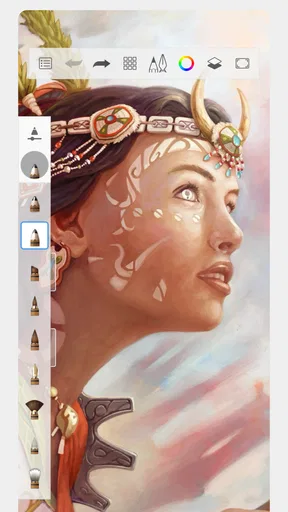
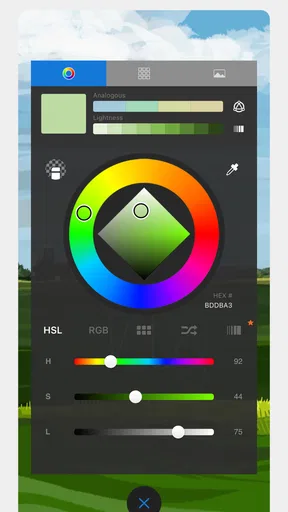
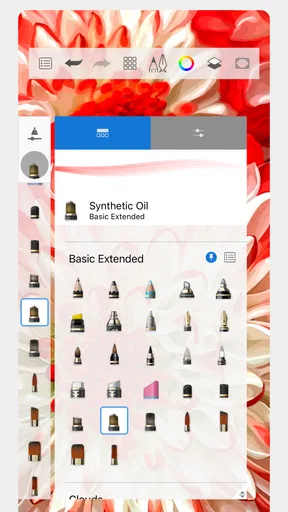
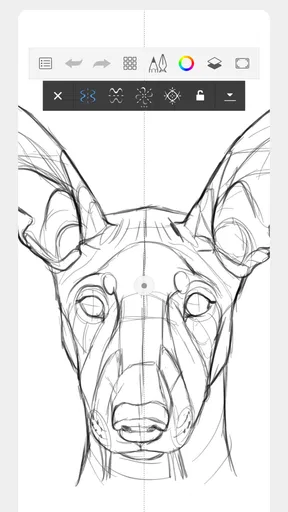
 Analysis by AppCompare
I find drawing apps easiest to judge when something goes slightly wrong: a tool is hard to locate, a sketch needs a change, or a quick idea turns into a longer session. Sketchbook is an art and design app from Sketchbook, and its clean layout makes getting started feel approachable. It is free, rated for Everyone, and has an average rating of 4.0 from around 699,000 ratings, with over 100 million installs. Those figures suggest it has reached a broad audience, but the more useful question is whether its drawing workflow fits the way you like to work.
Where drawing sessions can get stuck
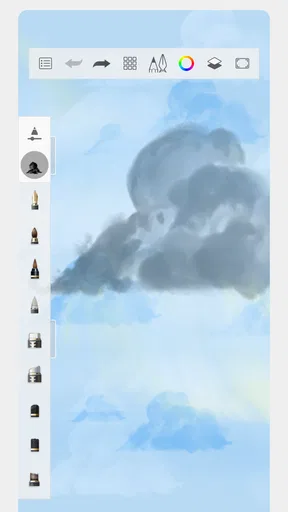
The interface is inviting, but an uncluttered workspace can still take a little getting used to if you are moving from paper or another drawing app. At first, I would spend a moment identifying the tools I actually use rather than trying every option at once. A short warm-up sketch is a practical way to learn where the brush, color, and layer controls sit without interrupting a piece that matters to you.
Brush choice is another place where it is easy to lose momentum. A large selection is useful, but switching repeatedly can become its own distraction. I get better results by choosing one brush for the initial shapes, then testing a second on a spare area or layer before applying it to the main drawing. That small habit makes experimentation feel deliberate instead of turning the canvas into a collection of accidental marks.
Guides and Analysis on Sketchbook
Setup checks before you start a serious piece
Before investing time in a detailed drawing, I recommend making a tiny test project. Try a few strokes, add a layer, change a brush setting, and close and reopen the work to check that your basic routine makes sense. This is not complicated setup; it is simply a low-pressure way to learn the controls and avoid discovering a confusing step when you are already deep into a sketch.
Think about the device you prefer to draw on, too. A phone is handy for quick studies and small edits, while a larger screen can make detailed work easier to see and control. I would not assume that a project will move between devices exactly as expected without first checking the app’s behavior in my own setup. If switching devices is part of your plan, test that workflow with a disposable sketch before relying on it for something important.
Recovering a workflow when a drawing needs changes
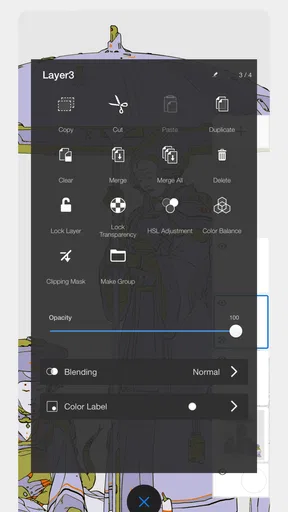
Layers are most helpful when I decide what might change before I draw it. I can separate a rough layout from cleaner lines or keep a detail apart from the main shapes, so an adjustment does not force me to redo the whole image. Even a simple two-stage approach—rough idea first, refinement afterward—can make revisions less stressful and keep experiments from taking over the finished work.
Brush customization can also be useful when the default result feels close but not quite right. I would adjust one setting at a time and test it with a few strokes before saving the brush for regular use. That makes it easier to tell which change helped, and it reduces the chance of ending up with a custom tool whose behavior is hard to reproduce later.
Worth Reading Before You Choose

Basketball Stars: Multiplayer Is Fast, but Can It Recover When Matches Go Wrong?

WEBTOON Turns Phone Updates Into a Better Reading Routine

Link to Windows Runs on Shared Habits, Not Social Feeds

How Alibaba.com Dominates the B2B Marketplace
Metro's Quiet Rise: Redefining Mobile Communication

Harnessing Ecosystem Power with Phone Tracker by Number
When the app may not be the cause
If drawing feels awkward or a result looks different from what you expected, the problem may be the chosen brush, its settings, or the way the device responds to your input rather than a flaw in the artwork itself. I start by making a few simple test marks, switching back to a familiar brush, and checking whether the issue remains. Changing one thing at a time is more useful than rebuilding the whole setup in frustration.
It is also worth separating creative needs from technical ones. Sketchbook is a good fit for drawing and painting on a personal device, but it may not suit someone whose routine depends on a specific professional production pipeline, a particular file handoff, or a guaranteed cross-device process. In that case, I would test the exact task first or choose a tool built around that requirement instead of assuming every drawing app handles it the same way.
The Versatility of Sketchbook
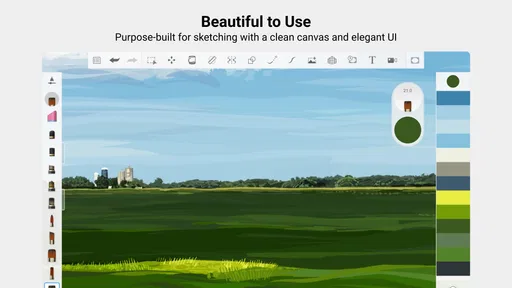
When I first opened Sketchbook, I was immediately impressed by its sleek, intuitive interface. Whether you're a professional artist or just someone who loves to sketch for fun, the app is incredibly easy to navigate. The toolbar is neatly arranged, making it a breeze to find the tools you need without breaking your creative flow.
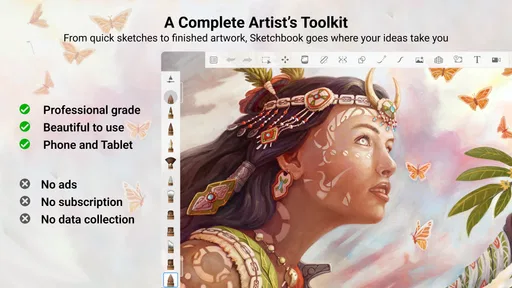
One of the standout features is the wide variety of brushes available. I spent an embarrassingly long time just experimenting with different brush styles—from pencils to airbrushes, each one mimics the real-world tool remarkably well. This makes it perfect for everything from rough sketches to detailed artwork.
Layers and Customization
Layers are a game-changer for any digital artist, and Sketchbook doesn’t disappoint here. You can create multiple layers and manage them effortlessly. This allows for complex compositions and easy adjustments without compromising on the quality of your work.
Customization is another big win. You can tweak brushes, adjust opacity, and even create your own brushes if the existing selection doesn’t quite meet your needs. I found this particularly useful when trying to achieve a specific texture or effect.
Seamless Experience Across Devices
One thing I really appreciated was the app’s ability to sync across multiple devices. Whether I was sketching on my tablet or refining details on my phone, everything was perfectly synced. This flexibility means you can start a project on one device and finish it on another without a hitch.
Not to mention, the app’s performance is top-notch. I didn’t experience any lag, even when working on larger files. This is crucial for maintaining the momentum of creativity without getting bogged down by technical glitches.
Community and Learning Resources
Another aspect worth highlighting is the supportive community and the wealth of tutorials available. Whether you’re a beginner looking for tips or a seasoned artist seeking inspiration, there’s a plethora of resources to tap into. I've lost track of how many times a community tip has helped me out of a creative rut.
The developers seem committed to evolving the app based on user feedback, which is always a good sign. Regular updates bring new features and improvements that keep the app fresh and exciting.
Who will get the most from it
I would recommend this app to someone who wants a flexible place to practise drawing, explore brushwork, or turn a rough idea into a more finished image without setting up a desktop studio. It also suits hobbyists who enjoy learning by trying tools directly: a beginner can make simple studies, while a more experienced artist can use layers and brush adjustments to build a personal workflow. Because it is free, it is easy to try before deciding whether it belongs in your regular toolkit; in-app purchases are listed at $2.99 per item, so I would check any purchase prompt carefully and only pay for something I know I need.
A realistic use for me would be sketching a café sign or a room layout while the idea is fresh, then returning later to refine the shapes and colors. I would keep the first pass loose on its own layer, use a separate layer for cleaner lines, and avoid polishing details until the composition feels right. That simple order saves time: if the lettering or proportions need to move, I can adjust the rough stage without damaging the more careful work.
How it compares with other drawing apps
Compared with a basic note-taking app that happens to support a pen, Sketchbook is the better choice when the goal is an actual drawing session: its brush variety, layer workflow, and customization give you more room to shape an image. Against a highly specialized illustration or photo-editing tool, its appeal is a more direct, drawing-first experience rather than a promise that it will cover every professional production task. If your work depends on a particular export, collaboration, or print-preparation routine, test that exact step before committing; a tool designed around that pipeline may be a better fit.
For someone choosing between a phone and tablet, I would treat screen size as a practical trade-off rather than a question of app quality. The phone is convenient for a thumbnail, gesture study, or quick color idea, but small controls and limited viewing space can make precision tiring. A tablet is more comfortable for longer sessions and careful details. Whichever you use, save a small test drawing in the way you expect to work, then confirm you can reopen and continue it before using the same routine for a valuable project.
A few useful habits for longer projects
One non-obvious advantage of separating rough marks from final lines is that it also gives you a clean place to test color. I like to try a palette on a separate layer or an unused edge of the canvas before committing to it. If the colors feel wrong, I can revise the experiment without repainting the drawing. Similarly, when adjusting a brush, I make short sample strokes at different pressures or speeds, if my device supports that kind of input, rather than judging the tool from one mark.
For a project that matters, I would build in a brief pause before adding fine details. Zooming out and checking the overall balance helps reveal whether the main shapes read clearly; zooming back in is then more purposeful. This is a simple way to avoid spending time refining a small area that may later need to move. It also makes the app’s layers more valuable, because each stage has a clear job instead of becoming a stack of unexplained edits.
What to expect from cost, learning, and device changes
The app has been available since October 8, 2014, and its audience includes both casual sketchers and people who draw more regularly. It has around 31,000 written reviews, alongside its larger rating count, but I would use those broad signals only as context: your own comfort with the interface and the way your device handles drawing matter more. The free entry point is appealing, while optional purchases mean it is sensible to understand what is being offered before confirming anything.
Learning the basics should feel manageable if you approach it in small steps, but becoming fluent still takes practice. I would start with a few familiar tasks—rough shapes, a simple shaded object, and a small layered illustration—rather than trying to master every brush at once. And while the app’s cross-device workflow can be convenient, I would verify it with a modest test project on the devices I actually use. That keeps a sync or handoff assumption from becoming a surprise in the middle of a deadline.
When a different tool is the smarter choice
I would skip this as my main option if I needed a narrowly defined production feature that another specialist app already handles reliably, or if my work depended on a handoff process I had not tested here. I would also choose paper for a quick, no-screen scribble, and a basic notes app for a reminder where drawing quality does not matter. Sketchbook makes the most sense when I want to spend time shaping an image; it is less compelling when drawing is only a small step in a larger workflow that requires specific tools.
Overall, Sketchbook offers an impressive array of features that cater to every type of artist. It’s more than just an app; it’s a portable art studio that fits right in your pocket. If you haven’t tried it yet, I highly recommend giving it a whirl. You might find it becomes an essential tool in your creative arsenal, just like it has for me.
Pros
- Intuitive interface for easy navigation.
- Wide range of brushes and tools.
- Supports layers for detailed work.
- Accessible for both beginners and pros.
- Smooth performance with minimal lag.
Cons
- Limited export formats available.
- Some features require in-app purchases.
- Occasional crashes on older devices.
- No real-time collaboration features.
- Requires significant storage space.
FAQs for Sketchbook
What platforms is Sketchbook available on?
Sketchbook is available on both Android and iOS platforms, making it accessible to a wide range of users. Whether you use a smartphone or a tablet, you can download and enjoy the app from the Google Play Store or the Apple App Store, ensuring compatibility across most devices.
Is Sketchbook free to use, or does it require a subscription?
Sketchbook offers a free version with basic features suitable for casual users. However, for access to advanced tools and a more robust experience, a subscription is available. The premium version unlocks additional brushes, layers, and customization options, ideal for professional artists seeking enhanced capabilities.
Can I use Sketchbook offline, or does it require an internet connection?
Sketchbook can be used offline, allowing you to create and edit your artwork without an internet connection. This feature is particularly useful for artists who want to work on their projects in various locations, without worrying about connectivity issues interfering with their creative process.
What are the main features that make Sketchbook stand out?
Sketchbook is renowned for its intuitive interface, extensive brush library, and powerful drawing tools. It supports multiple layers, advanced blending modes, and high-resolution canvas sizes. The app also provides a time-lapse recording feature, enabling artists to showcase their creative process from start to finish.
Does Sketchbook support stylus input, and which stylus brands are compatible?
Yes, Sketchbook supports stylus input, enhancing precision and control for digital artists. It is compatible with popular stylus brands such as Apple Pencil, Samsung S Pen, and Wacom. This compatibility ensures a seamless and natural drawing experience, closely mimicking traditional drawing methods.


